 Artery
Get your group running on Artery
A step-by-step walkthrough for a coordinator or trustee. No technical skills needed. You bring your volunteers, bikes and places in a spreadsheet; Artery does the typing.
- About an hour start to finish
- Free — always
- Your own private address and data
- Works on any device with a browser
Perfect — that's what the practice servers are for. Use the fictional practice group file in Before you start and nothing you do will matter. We can clear a practice server for a fresh start whenever you like.
Before you start
Three small jobs, all done away from Artery.
1. Decide three things as a committee
| Question | Choices |
|---|---|
| When does your group ride? | Daytime only, nights only, or 24 hours. (Artery doesn't assume.) |
| Should Artery track riders' positions? | While on shift (the default), only during a live job, or not at all. Pressing SOS always records where you are, whichever you choose. This is a committee decision, so make it deliberately. |
| Where should a safety backup email go? | If someone raises an SOS and no controller sees it, Artery emails a shared group address as a backup. No personal details are put in these emails. |
2. Fill in the spreadsheet
One file, five tabs: your group details, volunteers, controllers, locations and vehicles. Leave blank anything you don't have — you can add it later. Don't put any passwords in it.
The sheet holds phone numbers, next of kin and home postcodes. Don't post it publicly, and delete your copy once Artery has it. Share it only with the person setting up your group.
3. Tell us you're ready
Email chris@arterybb.uk with your group name, the three answers above, and who your Admin will be. We create your group's own private address (it looks like bb1.arterybb.uk while you practise) and send you the Admin password privately.
1 Open your group and sign in
- Open your group's address in a browser on a laptop or desktop. (Phones are for volunteers; the control desk works best on a bigger screen.)
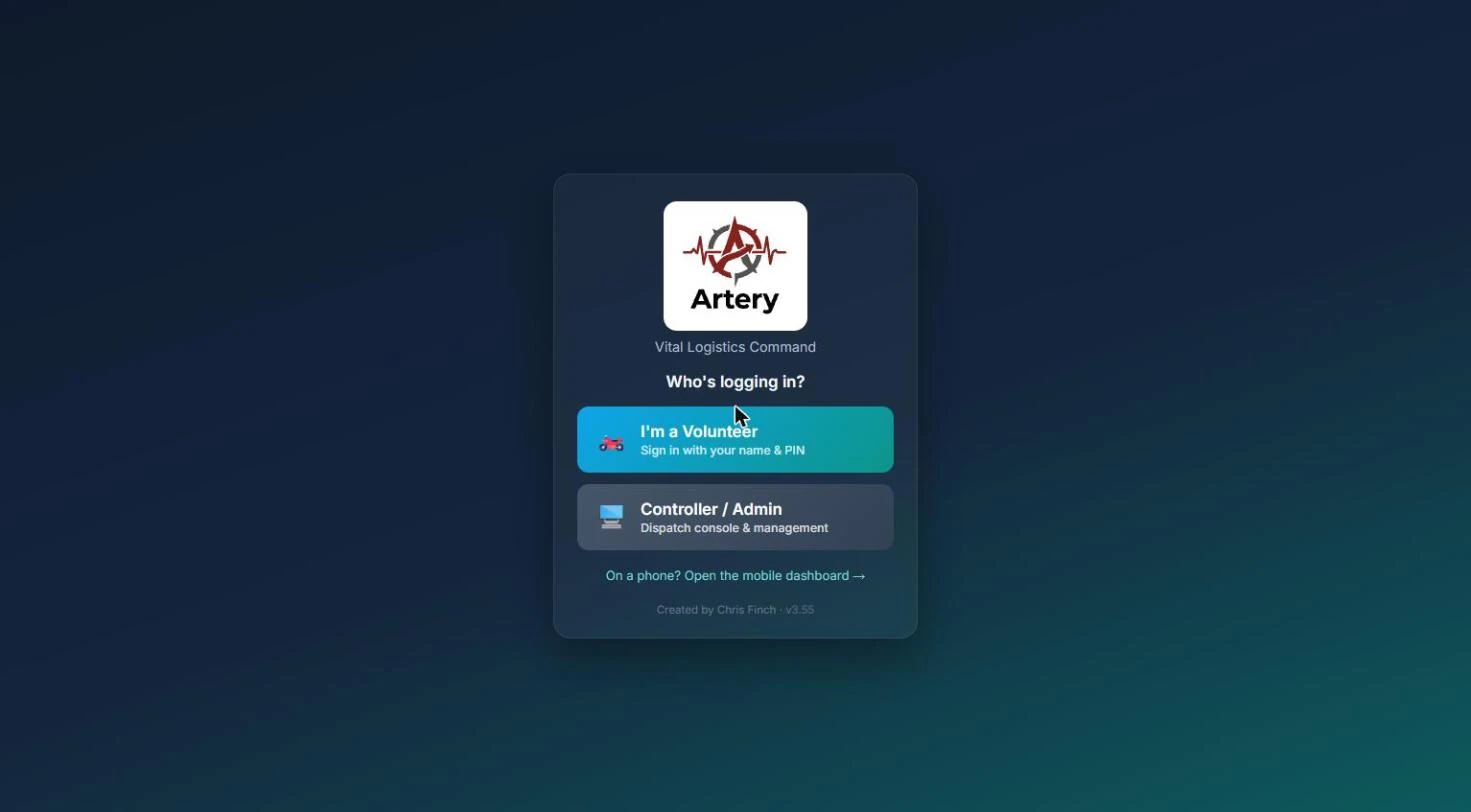
- On the first page, under Who's logging in?, choose Controller / Admin.
- In the orange Controller / Admin box, open -- Select your name -- and choose Admin, type the password we sent you, then press Sign In.
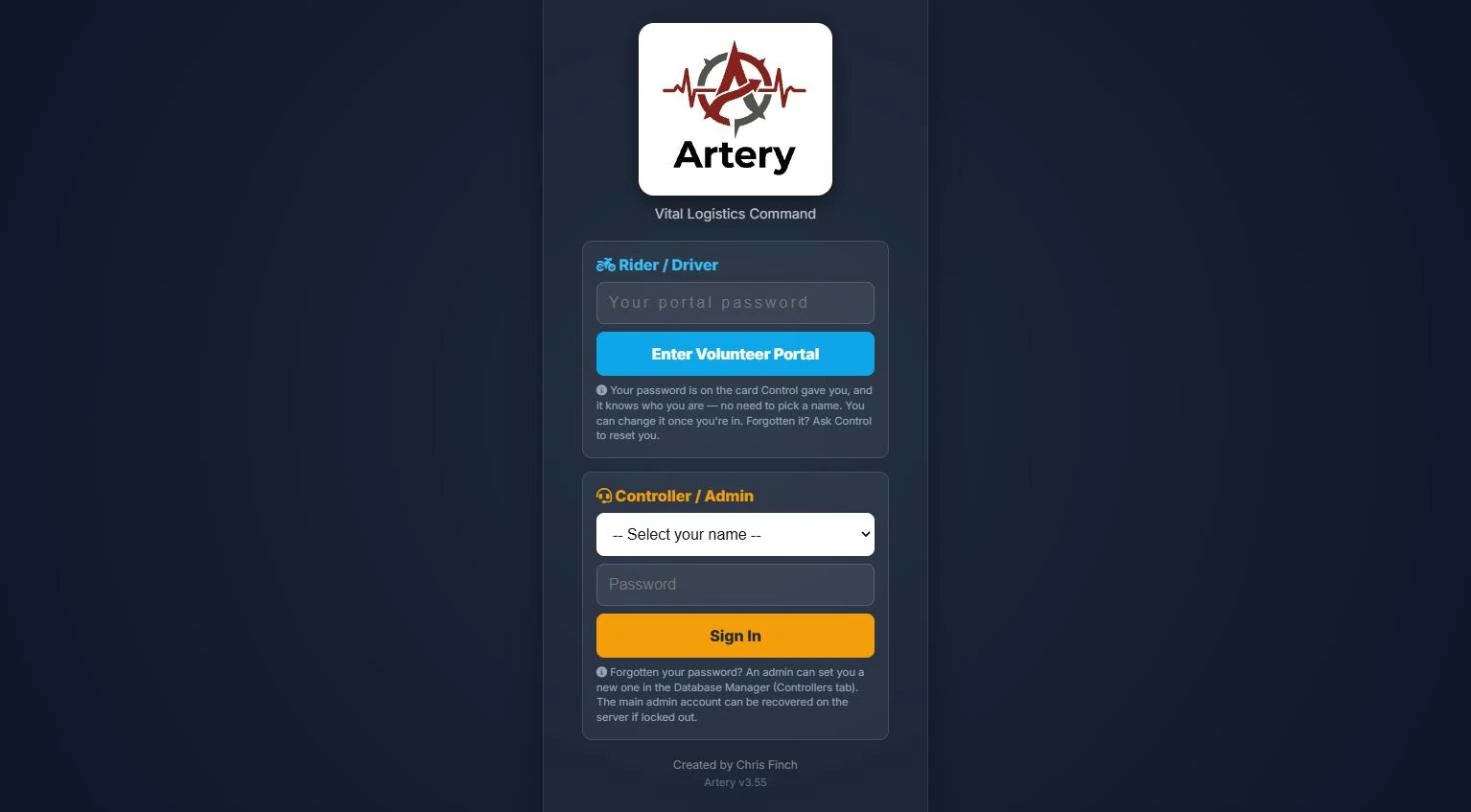
The Admin account is protected on purpose: nobody else can delete it or change its password. Keep its password somewhere safe. If it's ever lost, we can reset it.
2 Find your way around
Artery gives controllers two layouts of the same control desk. They do exactly the same things — pick whichever you like.
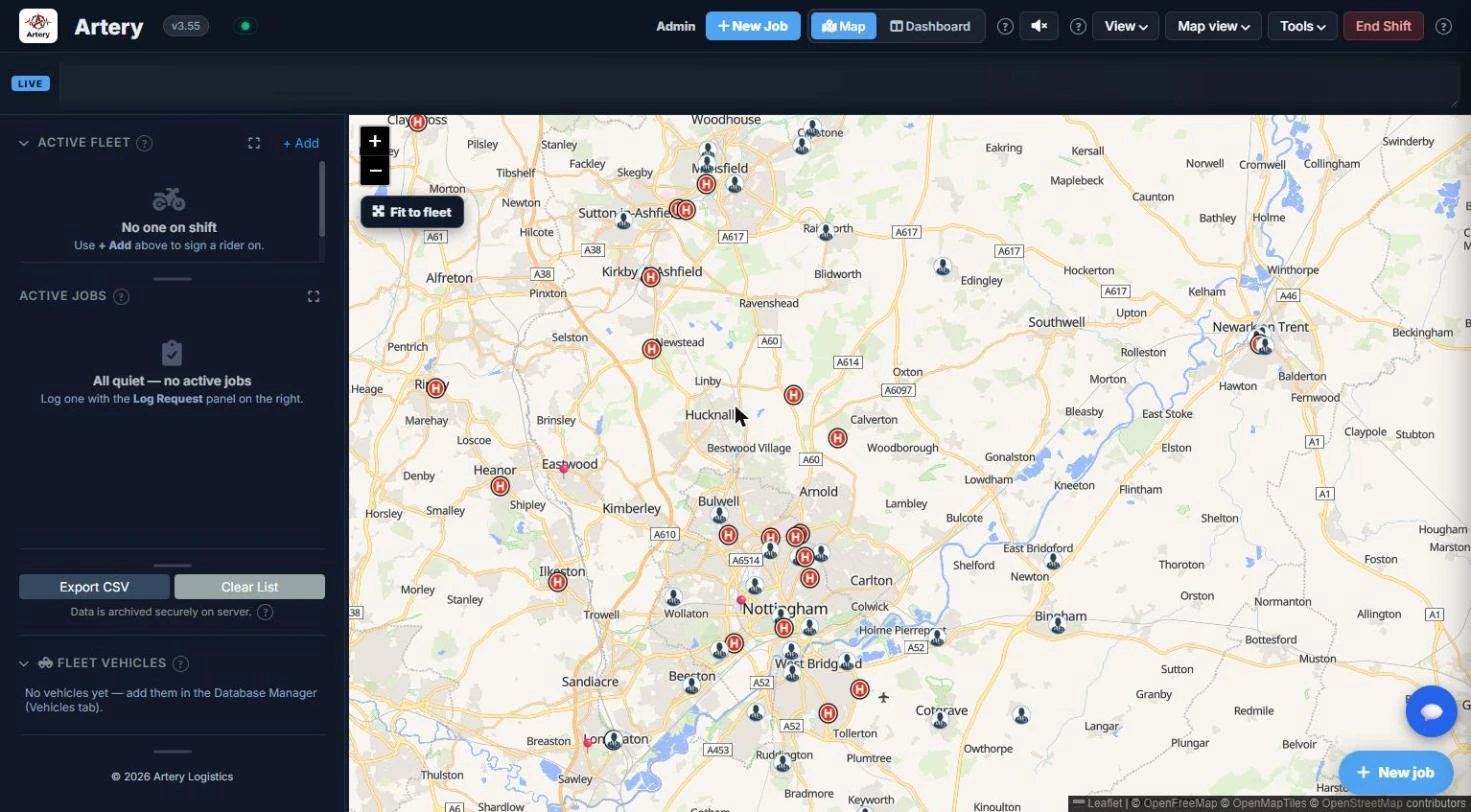
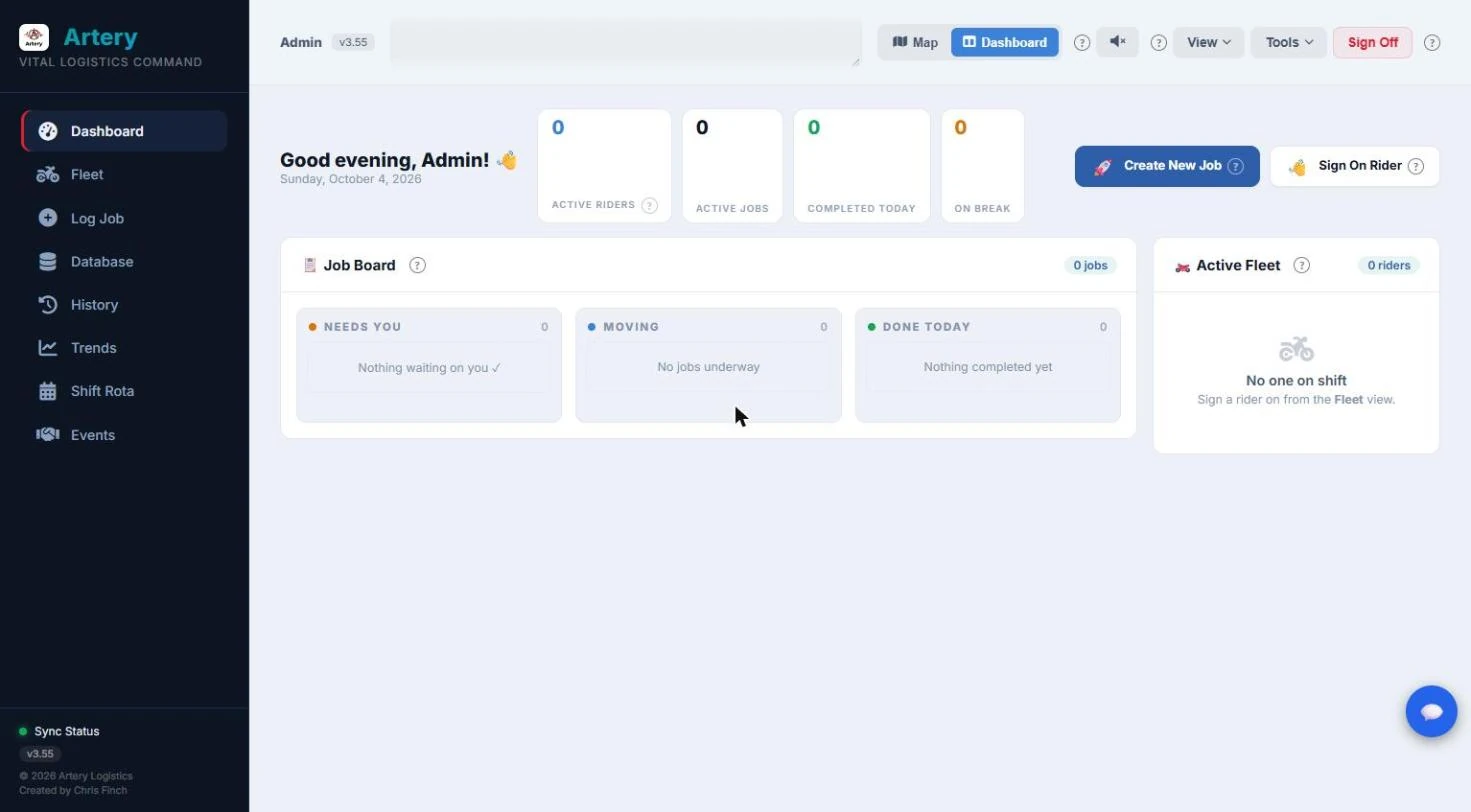
- Switch layouts any time with the Map / Dashboard buttons at the top.
- Along the top are menus: View and Tools, plus Map view in the Map view. The Dashboard also has a left-hand menu: Dashboard, Fleet, Log Job, Database, History, Trends, Shift Rota and Events.
- The same job has slightly different names in each layout: + New Job in the Map view, Create New Job (or Log Job in the left menu) in the Dashboard.
- The red button at the top right ends your session. It reads End Shift or Sign Off depending on where you are, so don't worry if you see either.
- Look for the little ? buttons. Press one and it explains that one thing in plain English.
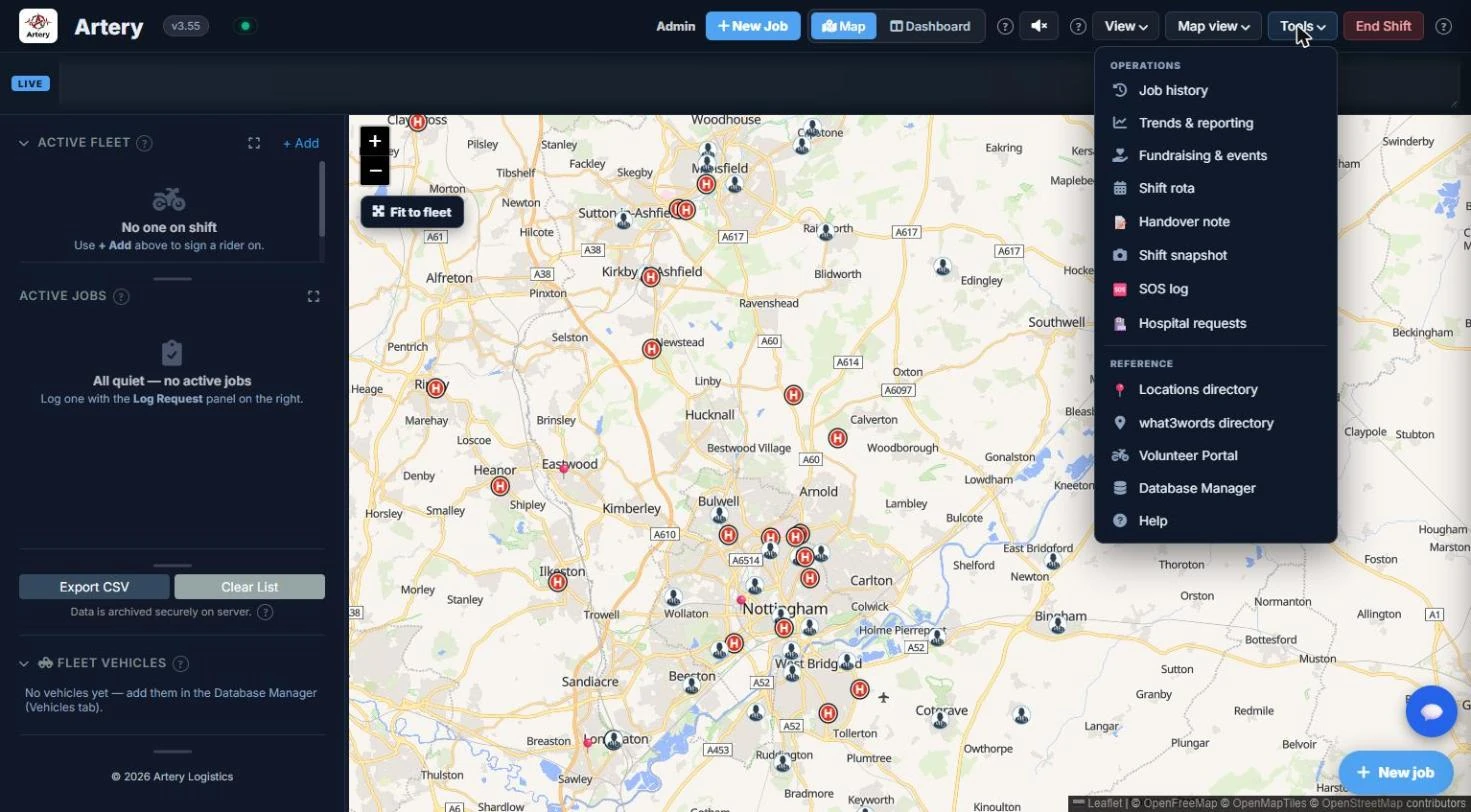
A new group begins with a starter set of East Midlands hospitals and surgeries. Keep the ones you use, remove the rest (Database Manager → Locations → Remove), and add your own.
3 Add your people, bikes and places
This is where your spreadsheet earns its keep. You'll import it one tab at a time. Nothing is saved until you press the final Import button, and anything already in Artery is skipped, never overwritten.
- Open Tools → Database Manager. (In the Dashboard, choose Database in the left-hand menu.)
- Press Import from spreadsheet (it's at the top, next to Export to spreadsheet).
- Choose what the file holds (Volunteers, Controllers, Vehicles or Locations), then choose your file.
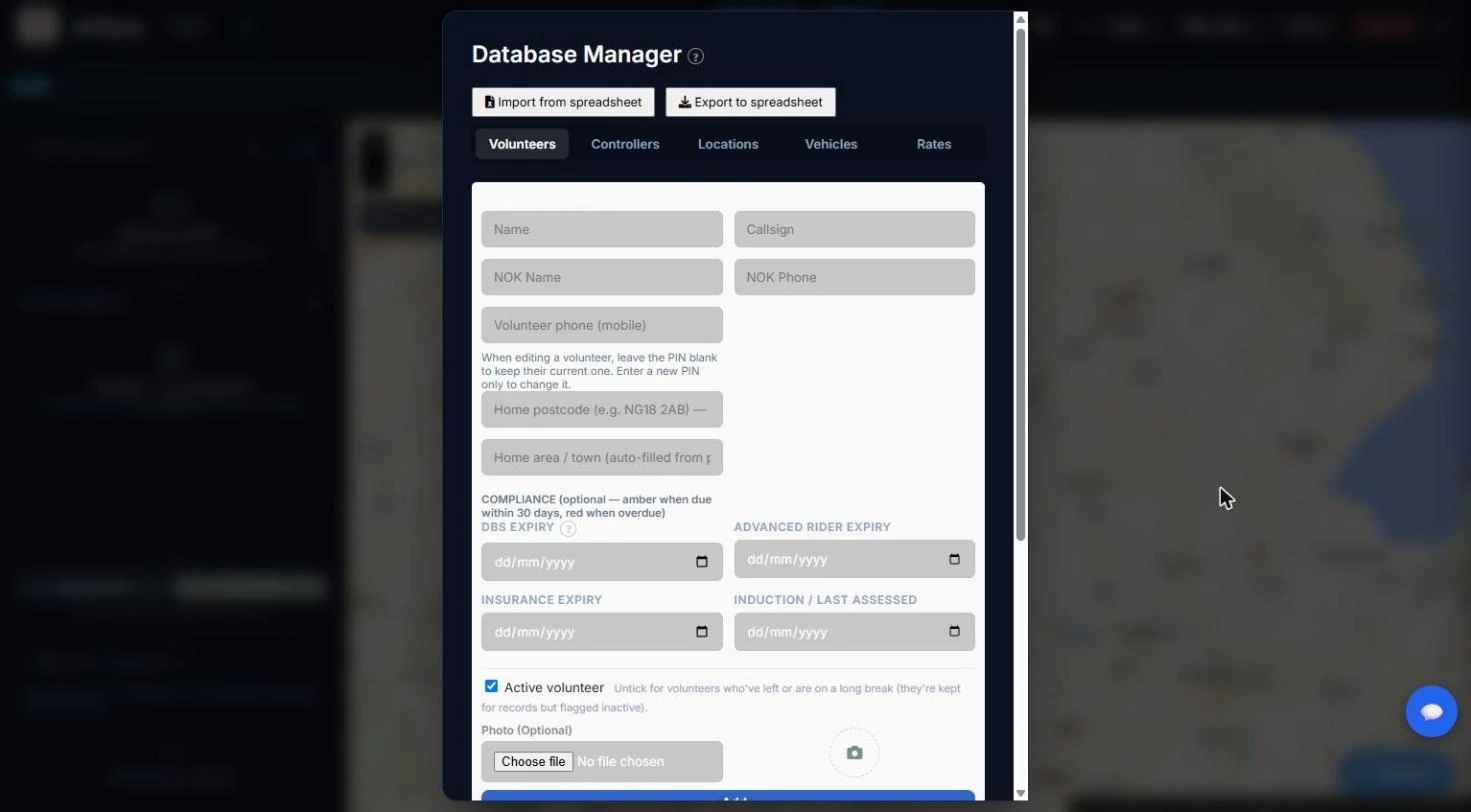
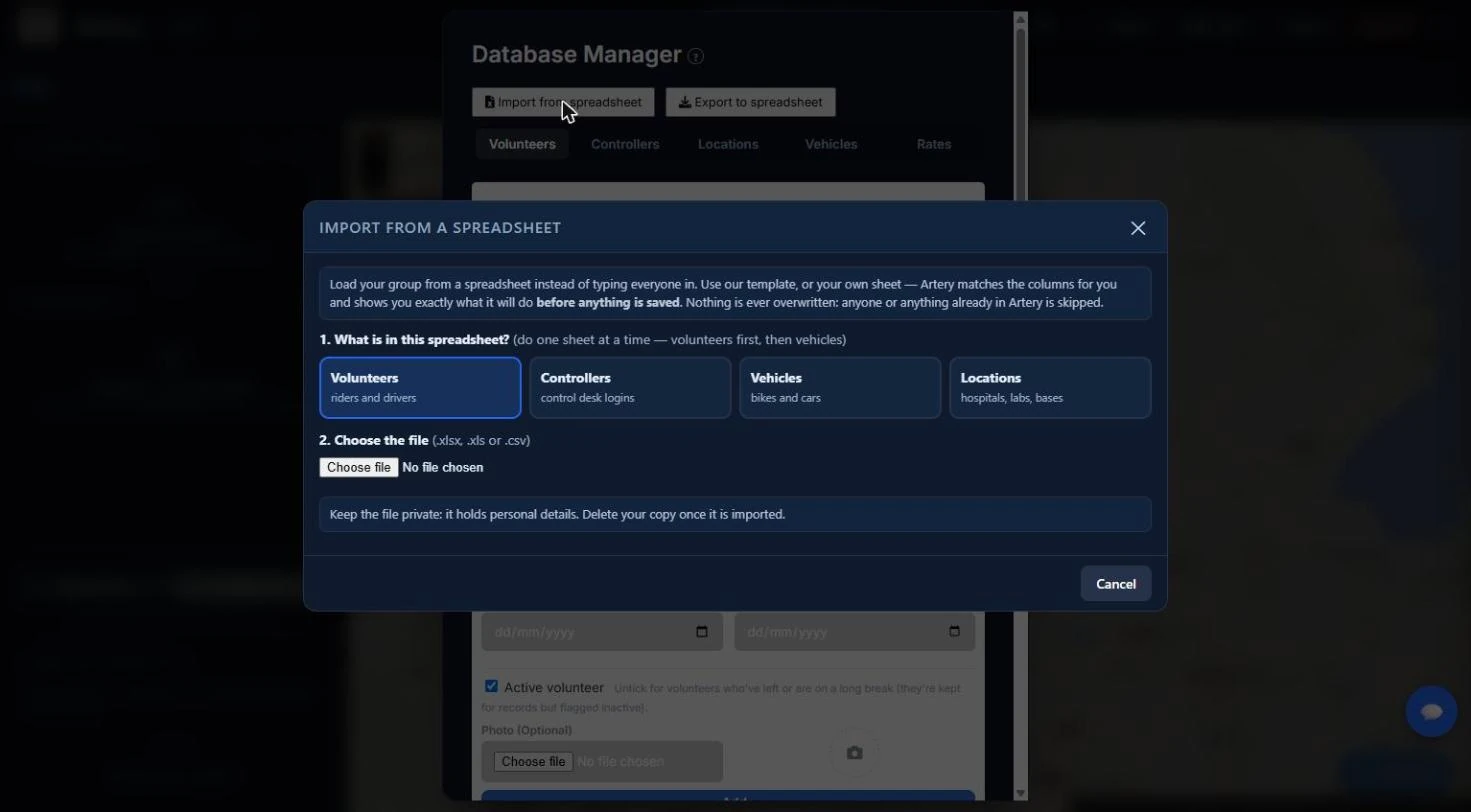
Volunteers first, then Controllers, then Vehicles, then Locations. The order matters for vehicles: each bike's keeper is matched to a volunteer, so if you import vehicles first you'll see "… is not on the volunteer list yet" beside every bike and no keeper will be set.
Further down the Volunteers and Controllers tabs there are older, simpler CSV import boxes. They still work, but Import from spreadsheet at the top is the one this guide uses.
Read the preview before you commit
Artery shows you exactly what it will do, row by row:
- Columns. Artery matches your headings to its own. If it guessed wrong, change any of them from the drop-down. A sheet with different headings still works.
- Add / Skip / Cannot add. Add will be created. Skip is already in Artery (or an example row). Cannot add is missing something essential, such as a name, and the reason is shown.
- Notes. A missing phone number or an odd postcode is a note, not a blocker. It's left blank rather than guessed.
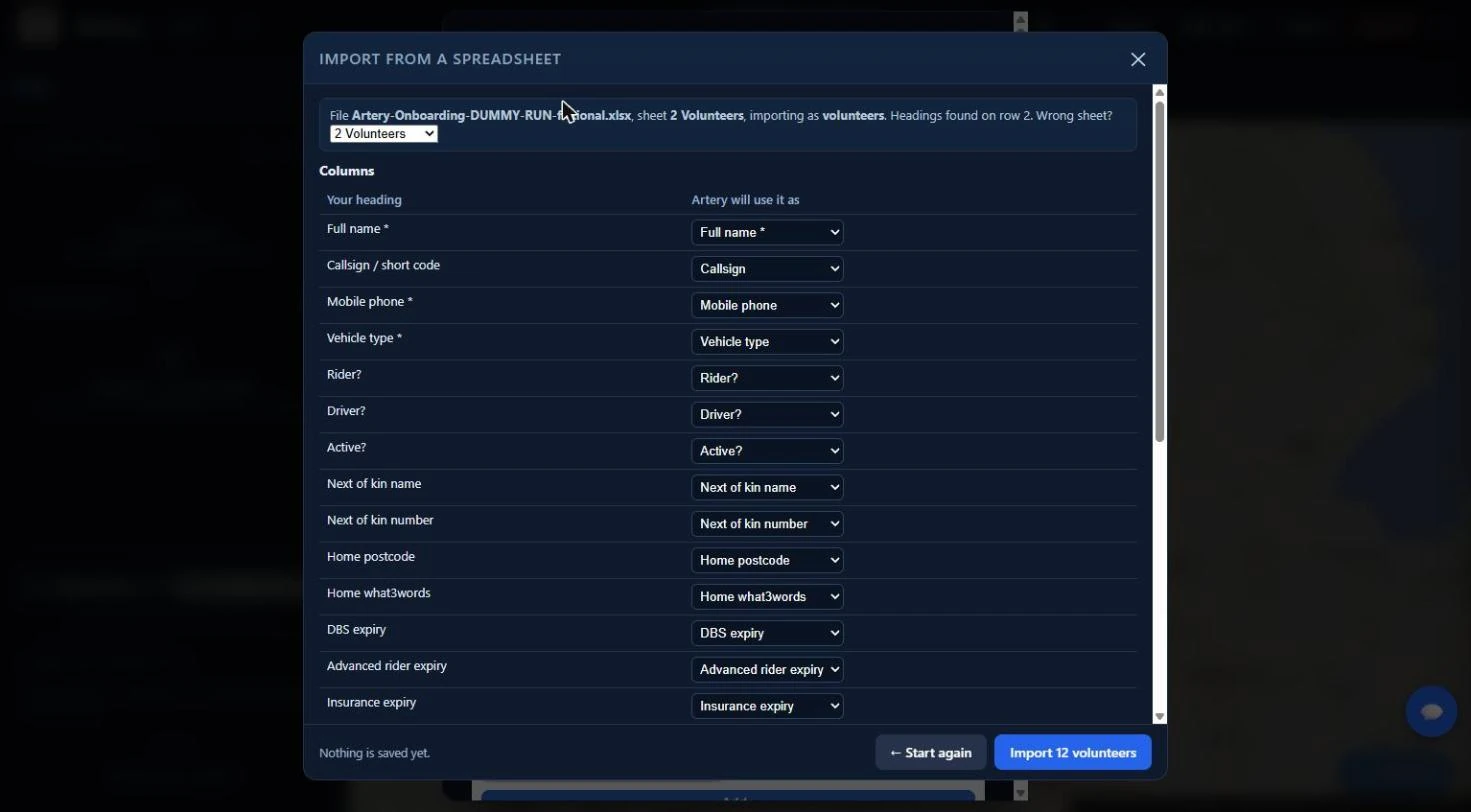
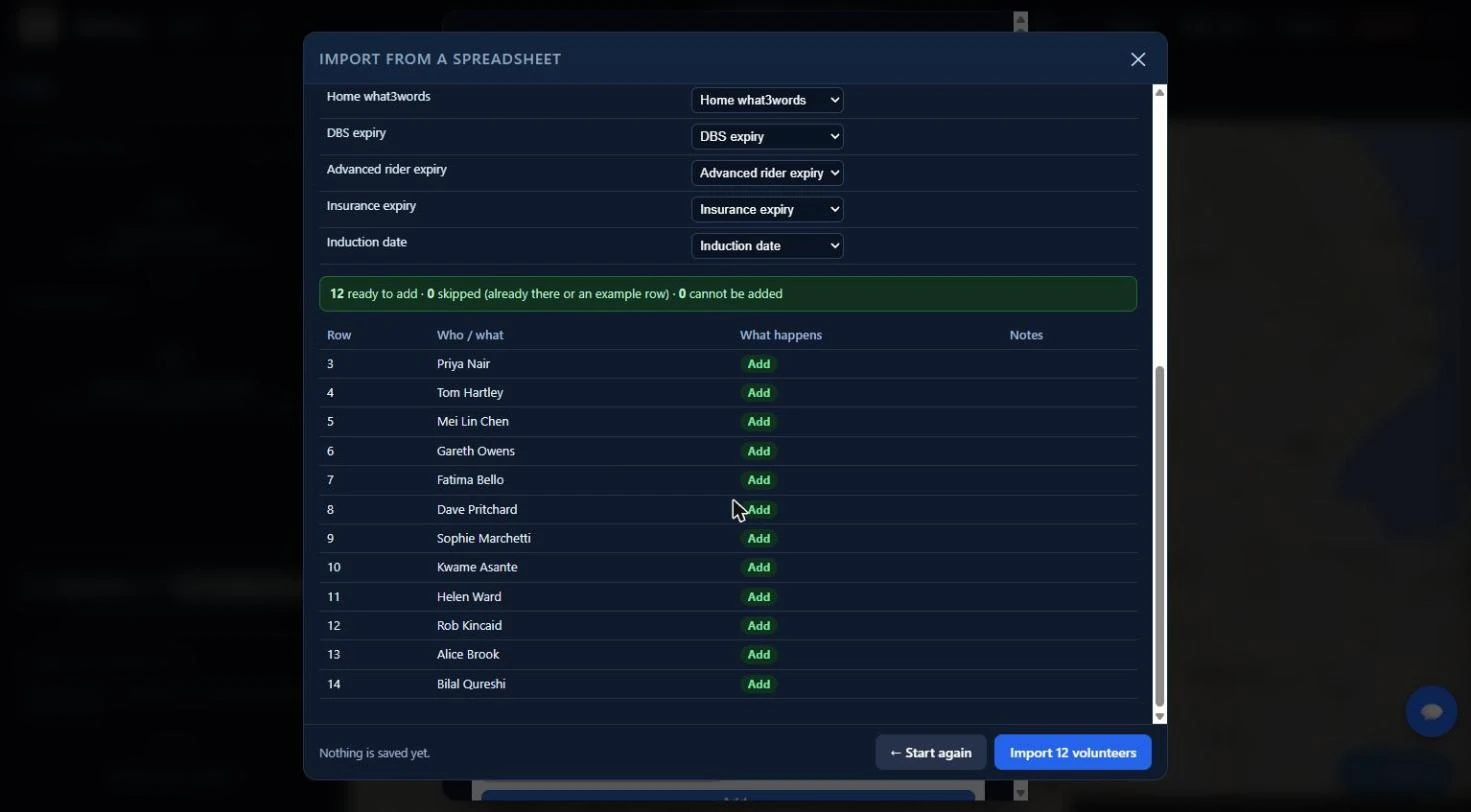
When you're happy, press the blue button at the bottom, for example Import 12 volunteers. Changed your mind? ← Start again throws the preview away without saving anything.
What each tab does
| Tab | What happens |
|---|---|
| Volunteers | Everyone is added with their own portal code (their way into the volunteer app). Home postcodes become a rough map position so Artery can suggest the nearest rider. |
| Controllers | Each gets a temporary password, shown once on the result screen. Copy it and give it to them privately. |
| Vehicles | Bikes and cars, with MOT, service and insurance dates for reminders, and who usually keeps each one (called the Custodian on the Vehicles tab). |
| Locations | Hospitals, labs and bases, placed on the map. A hospital with several doors becomes one site with several entrances. |
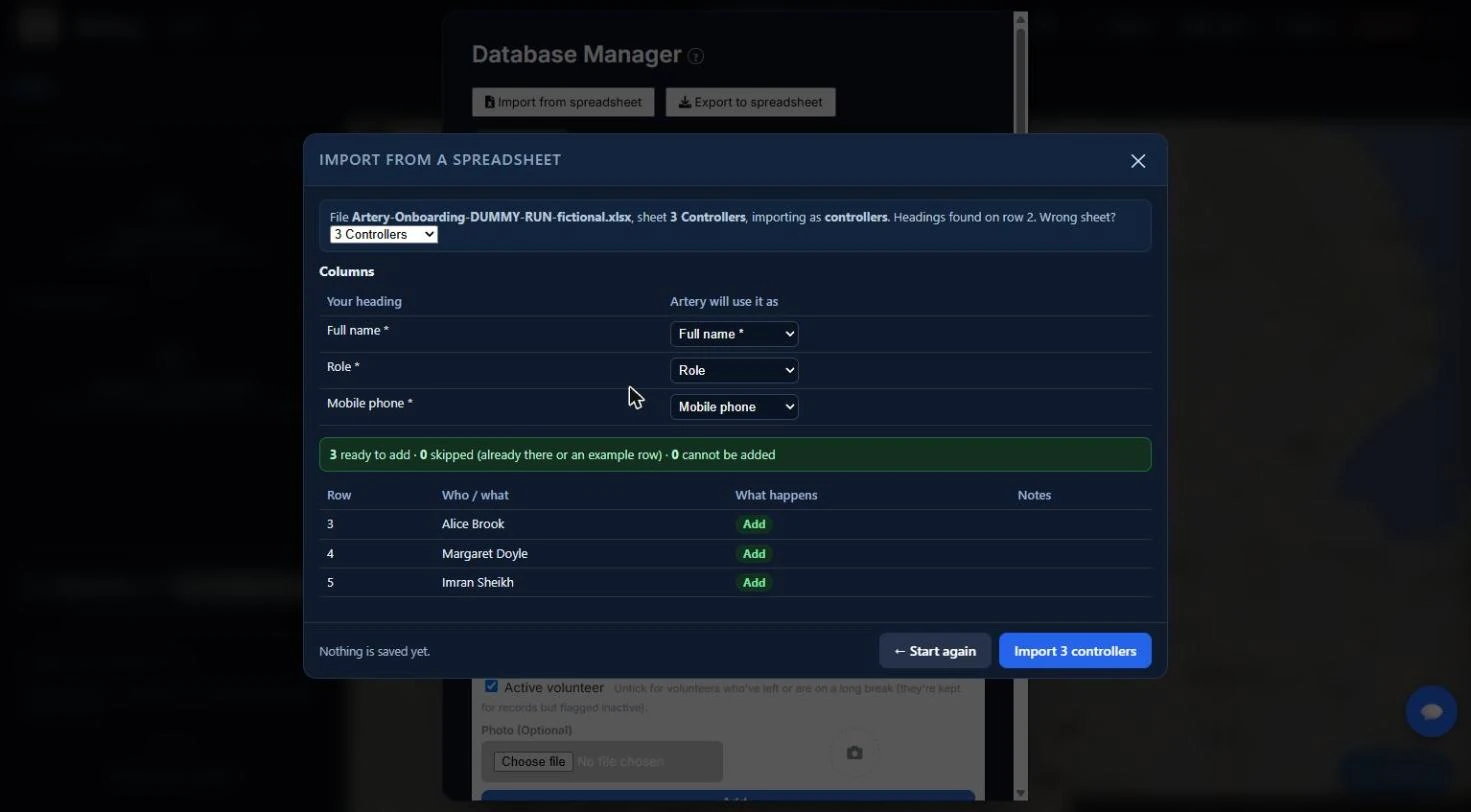

If you miss them, an Admin can set a new one any time in the Database Manager.
Prefer to type?
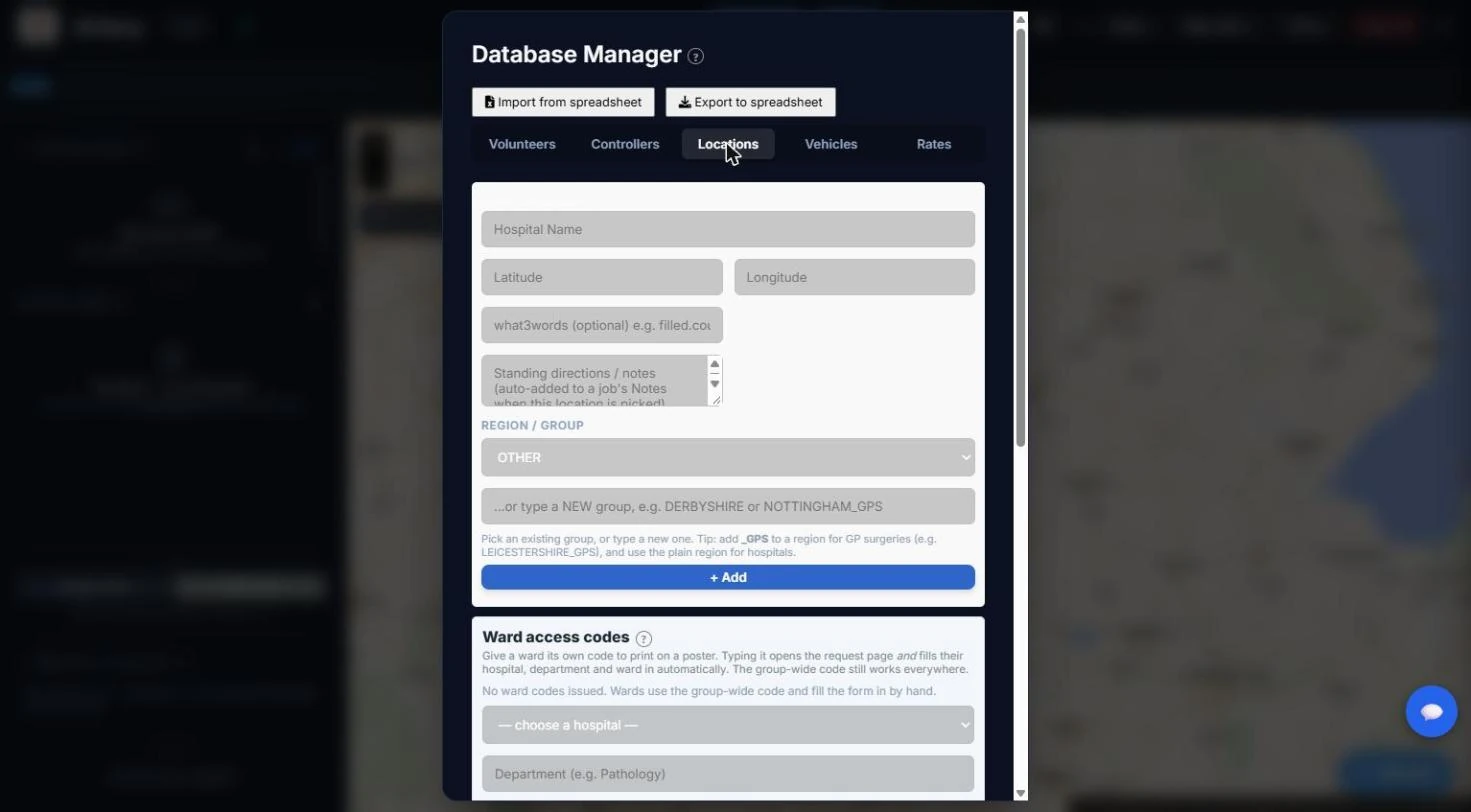
You can add people, vehicles and locations one at a time on the Database Manager's tabs instead, or mix both. One thing to know: adding a location by hand asks for its latitude and longitude, which most people don't have to hand. Importing from the spreadsheet (with a postcode or a what3words address) finds the map position for you, so it's the easier route for places.
The Export to spreadsheet button, next to Import, downloads everything in the same layout, so you always have a copy you can import again. It contains personal details, so keep it secure.
4 Give volunteers their codes
Every volunteer has their own portal password, a four-letter code that Artery makes for them. It's how they sign in on their phone.
- In the Database Manager, open the Volunteers tab and scroll to the list.
- Under each name, Admins see a 🔑 followed by that person's four-letter code. Pass each one on privately.
- Next to it you'll see not changed yet (they're still on the code you issued) or set their own (they've chosen a password).

Volunteers can choose their own password once they're in. If someone forgets theirs, press Reset password beside their name to put them back on the original code.
5 Hospital requests Optional
If hospital wards will ask for runs through Artery, each ward can have its own four-letter code on a poster. Typing it opens the request page with the hospital, department and ward already filled in. You can switch this on later; groups that don't use it lose nothing.
- Codes are made in the Database Manager's Locations tab, and you can print A4 posters with a QR code from the same place.
- Wards use a simple page at your group's address followed by /r.

6 Your volunteers sign in on their phones
Volunteers use the volunteer portal on their phone — no app store, it runs in the browser.
- They open your group's address on their phone and choose I'm a Volunteer.
- They type their portal password (the four-letter code) into the one box and press Enter Volunteer Portal. They don't need to pick their name.
- Optional but worth it: add it to the home screen (the browser's menu has an Add to Home screen option) so it opens like an app.
- When asked, allow notifications, so they hear about new jobs even when the app is closed.


Messaging, built in
A 💬 button lets a volunteer message Control (whoever is on duty at that moment) or a colleague who's on shift. Photos can be sent both ways — handy for a wrongly packed sample. Everything is logged. For emergencies, volunteers use the red SOS button, not messages.

7 Run a practice job
The best way to learn it is to do one. Grab a volunteer (or use your own phone) and walk a pretend job end to end.
- Controller: press + New Job. A Log Request panel slides in from the right: choose a pickup and a destination, describe the item, then press Generate Job.
- Controller: assign the job to your volunteer, who must be signed on to the board first (+ Add in the Map view's Active Fleet, or Sign On Rider in the Dashboard).
- Volunteer: opens the job on their phone and confirms they've got it. The controller sees it on the board straight away.
- Volunteer: records what they collected, collects a signature at pickup, then a signature at delivery.
- Controller: watch the job move across the board, then check it in Tools → Job history.


A real SOS alerts every controller and can email your backup address. Only test it on a practice server, and warn everyone first.
You're set up. What next?
- Rota and shifts: Tools → Shift rota plans your 4-week day and night shifts.
- Reports for trustees: Tools → Trends & reporting and Job history, with Excel and CSV exports.
- Stuck? Press a ? button, or open Tools → Help for a full guide.
Artery is built by a volunteer for the blood bike community, and it improves by hearing what tripped people up. If anything in this guide didn't match what you saw, or a step was unclear, please tell us.